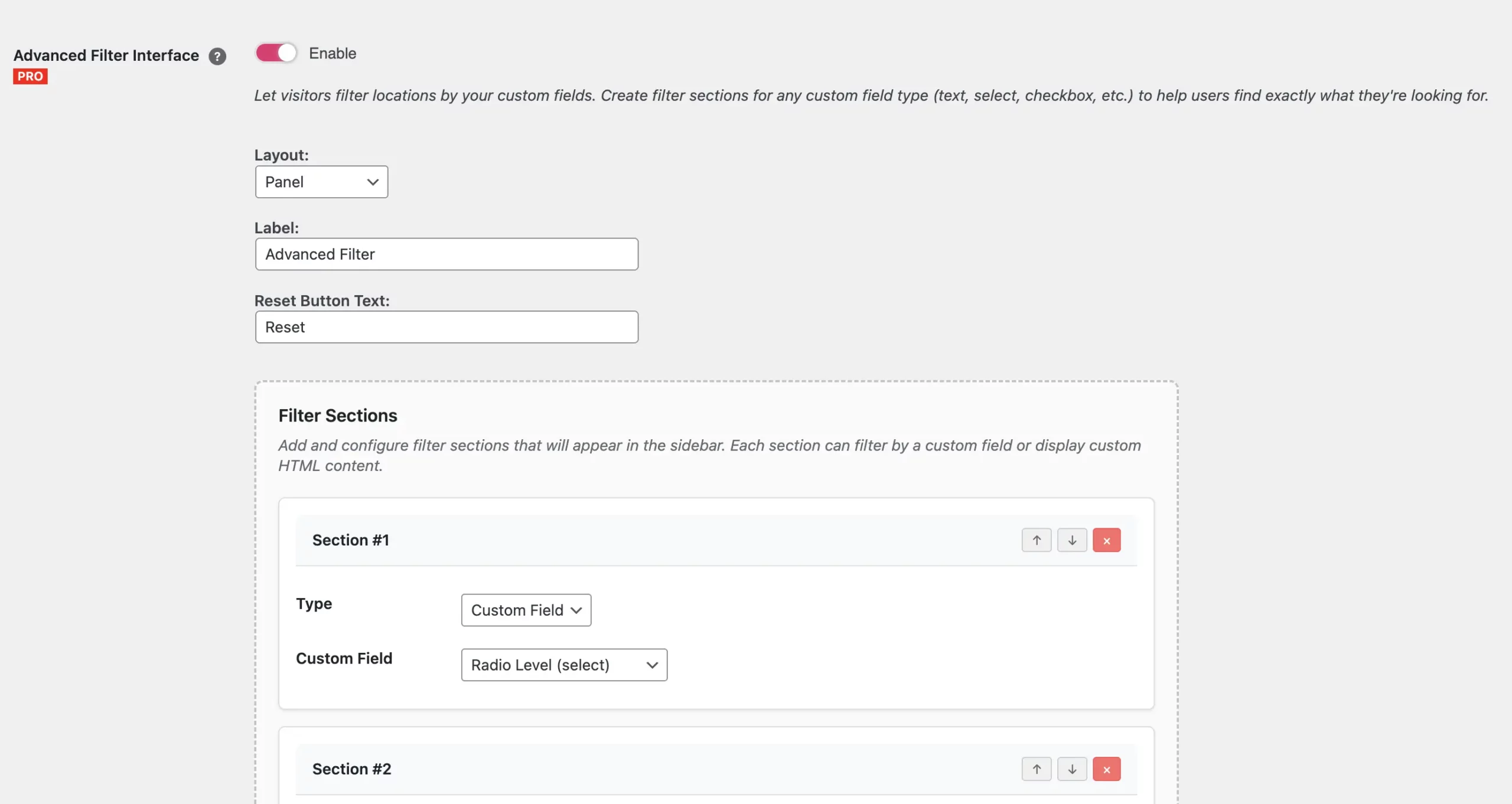
The Advanced Filter Interface allows you to display a filter area next to or above your map. Visitors can filter locations based on any custom fields you have configured. This provides more detailed filtering options than Marker Categories alone.
This is a PRO feature and is available since Version 1.4.16.
Overview
The interface can include:
- Filter controls for any custom fields
- Multiple filter types (text fields, dropdowns, checkboxes, radio buttons, etc.)
- Optional custom HTML content blocks for additional information or branding
Example layout with a left sidebar:
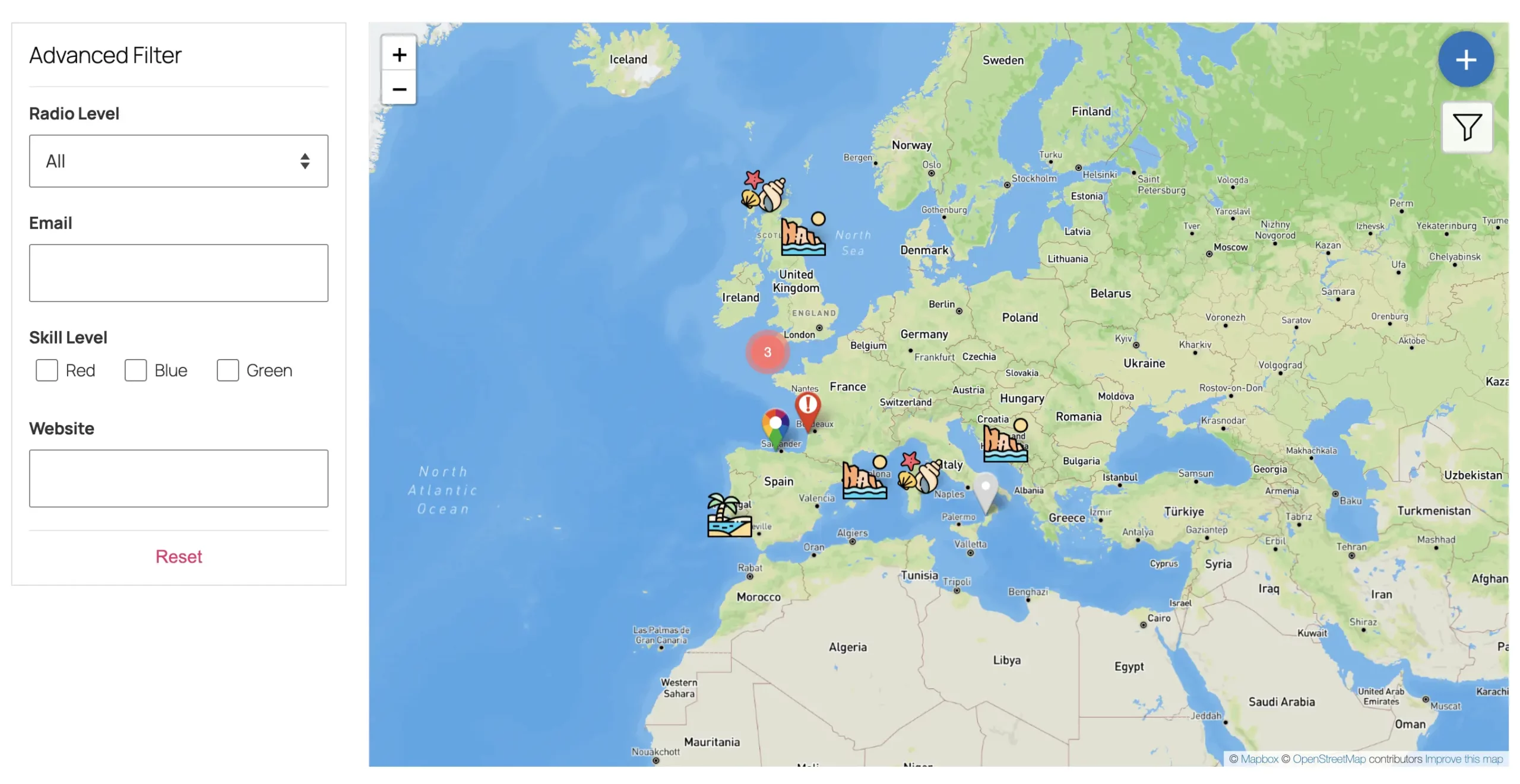
Layout Options
The interface can be displayed in four positions:
Left Sidebar
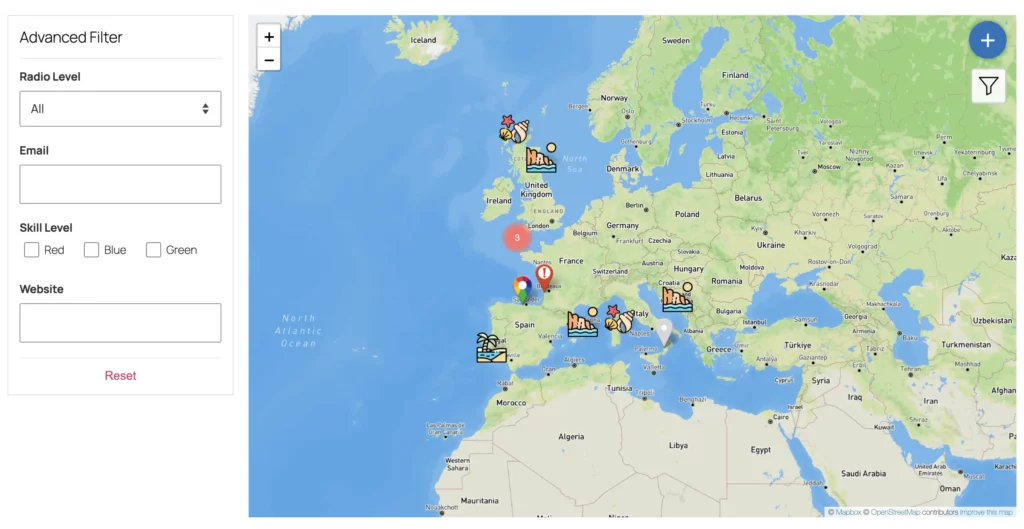
Right Sidebar

Button (Floating)
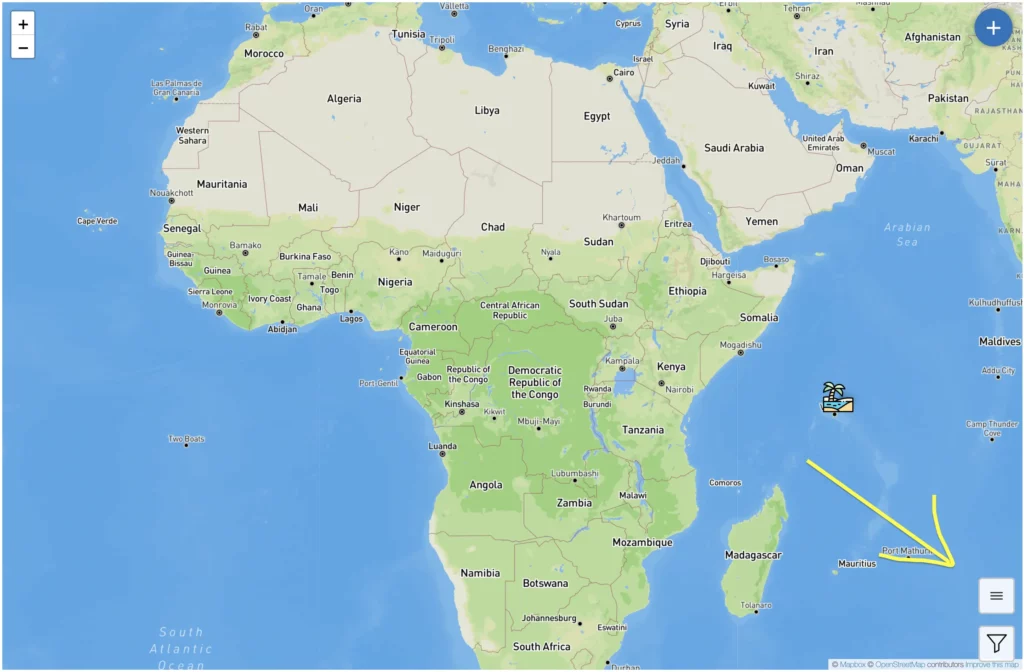
Panel (Floating)

How It Works
All custom fields created under Open User Map → Form Settings → Custom Fields can be added as filters.
The plugin automatically selects a suitable input type based on the field (e.g. text, select, checkbox).
Visitors can combine multiple filters at once to refine the visible locations on the map.
How to Enable
- Go to Open User Map → Settings → Filters & Categories → Advanced Filter Interface and enable
- Select a layout position
- Add Sections and choose which custom fields should appear as filters
- (Optional) Add custom HTML sections
- Save changes